XTM Platform Trial
The XTM Platform Trial gives your organization 30 days of access to the Enterprise Edition of XTM One, OpenCTI and OpenAEV. Every trial includes all three products: you do not choose them.
All three products are provisioned and managed from a single page in the XTM Hub, and your team members sign in to them with their XTM Hub credentials.
Request a Trial
To request a trial you must:
- be logged in to the XTM Hub,
- have an organization selected — trials are not available in a personal space,
- have the ADMINISTRATE ORGANIZATION or MANAGE PLATFORM REGISTRATION capability in that organization.
If you do not have the required capability, contact your organization's administrator.
To Request a Trial
- Open the main menu.
- Click XTM Platform Trial.
- Select the Region that will host your products: Europe West, United States East, Australia or Singapore.
- Select your Job title and Activity sector, then an OpenCTI use case and an OpenAEV use case. XTM One does not need one.
- Read and accept the Master Software Subscription Agreement and the AI terms of use.
- Click Request XTM Platform trial.
All fields are required.
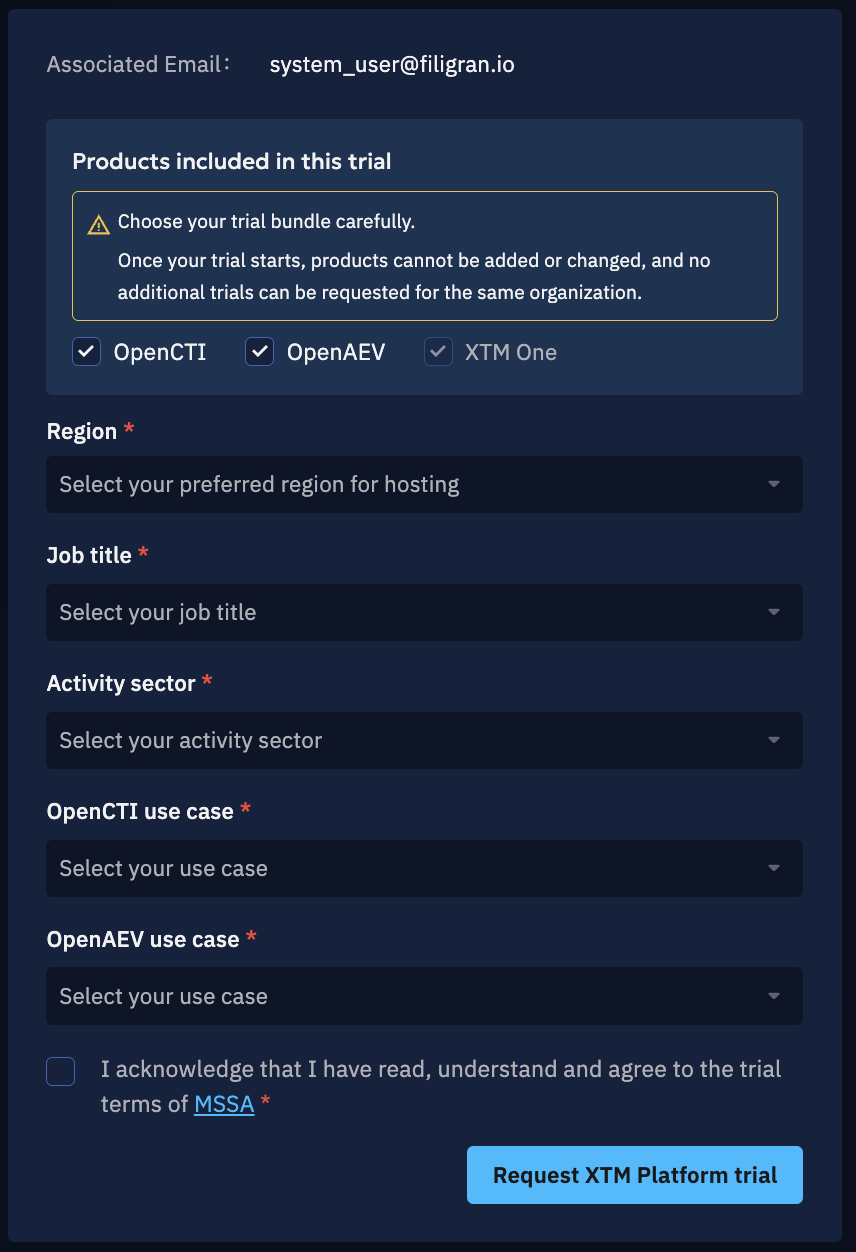
If the selected region has no free slot, your request is placed on a waiting list and starts as soon as a slot becomes available.
Rules
- Each organization can have only one trial.
- If you cancel your request before the trial is active, your organization can request a new trial. See Cancellation.
Trial Statuses
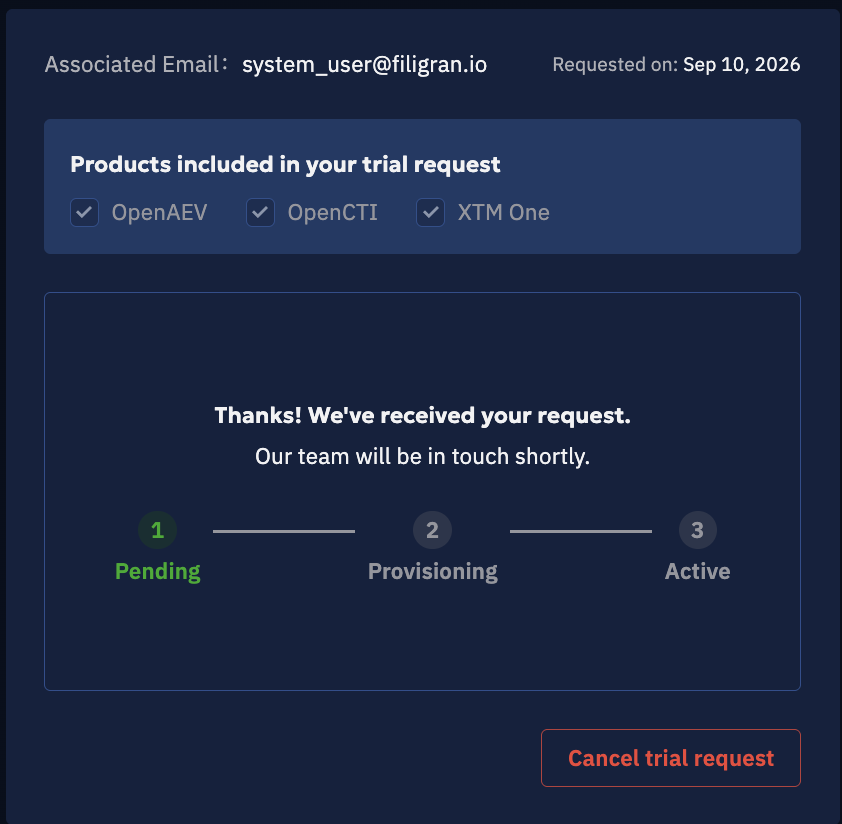
While your request is in progress, the XTM Platform Trial page shows the date of the request and its progress in three steps:
| Step | Description |
|---|---|
| Pending | Your request has been received and is waiting to be deployed, or is on the waiting list. |
| Provisioning | Your products are being provisioned. |
| Active | Your trial has started. The page now shows your trial details and your products. |
A trial that has ended shows one of these states:
| Status | Description |
|---|---|
| Cancelled | The trial has been cancelled. Your organization cannot request a new one. |
| Expired | The trial period has ended and access is no longer active. |
| Failed | The provisioning failed for technical reasons. |
From these states, use Reach out to Sales to contact our Sales team.
Trial Duration and Expiration
All trials last 30 days. The start date and the number of remaining days are displayed on the XTM Platform Trial page.
When the trial expires, access to all three products ends and the platforms are de-provisioned. To keep using the Enterprise Edition, contact our Sales team.
Enterprise License
The trial comes with an EE license, with all the Enterprise Edition features of the three products:
Trial Limitations
Your trial products include all the features of the Enterprise Edition SaaS offering, but run on limited compute and storage resources:
- OpenCTI: up to 40 GB of intelligence data and 3 GB of file storage.
- OpenAEV: up to 16 GB of storage.
Large premium feeds can fill this storage quickly. The trial comes with no SLA: recovery time is not guaranteed, so do not store critical data on your trial products.
Your Trial Page
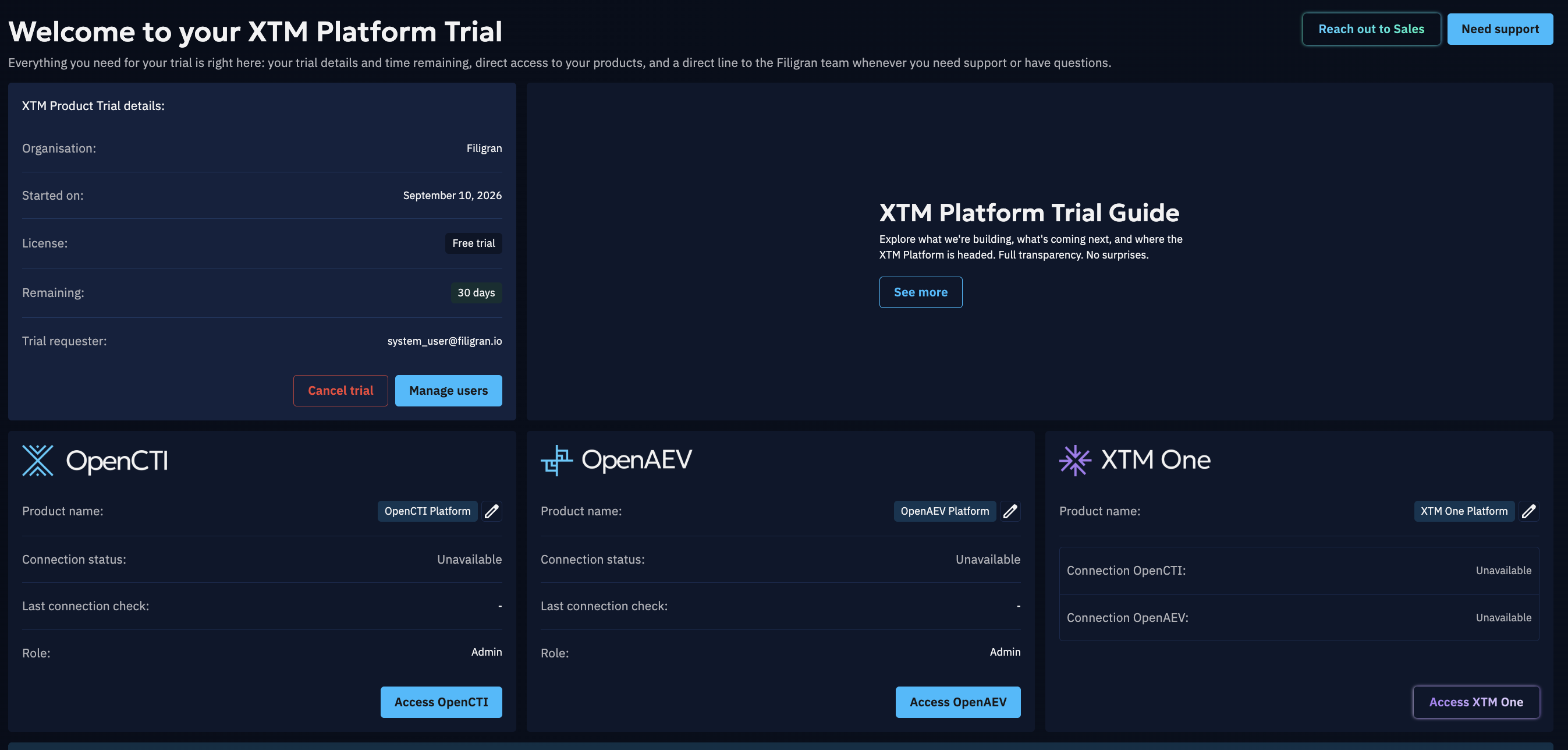
Once the trial is active, the XTM Platform Trial page gathers everything about it:
- Trial details: organization, start date, license, remaining days and the email of the user who requested the trial.
- One card per product: its name, its connection status and the date of the last connection check, the role you have been granted on it, and an Access button to open it. You can rename a product from its card. The XTM One card shows its connection to OpenCTI and OpenAEV instead.
- XTM Platform Trial Guide: explore what we are building, what is coming next, and where the XTM Platform is headed.
If no role has been assigned to you on OpenCTI or OpenAEV, the Access button of that product is disabled — ask a trial administrator to grant you one.
Manage Users on Your Trial
By default, the user who requested the trial is an administrator on all three products. Administrators can then grant access to other members of the organization.
To Manage Users
- Open the XTM Platform Trial page.
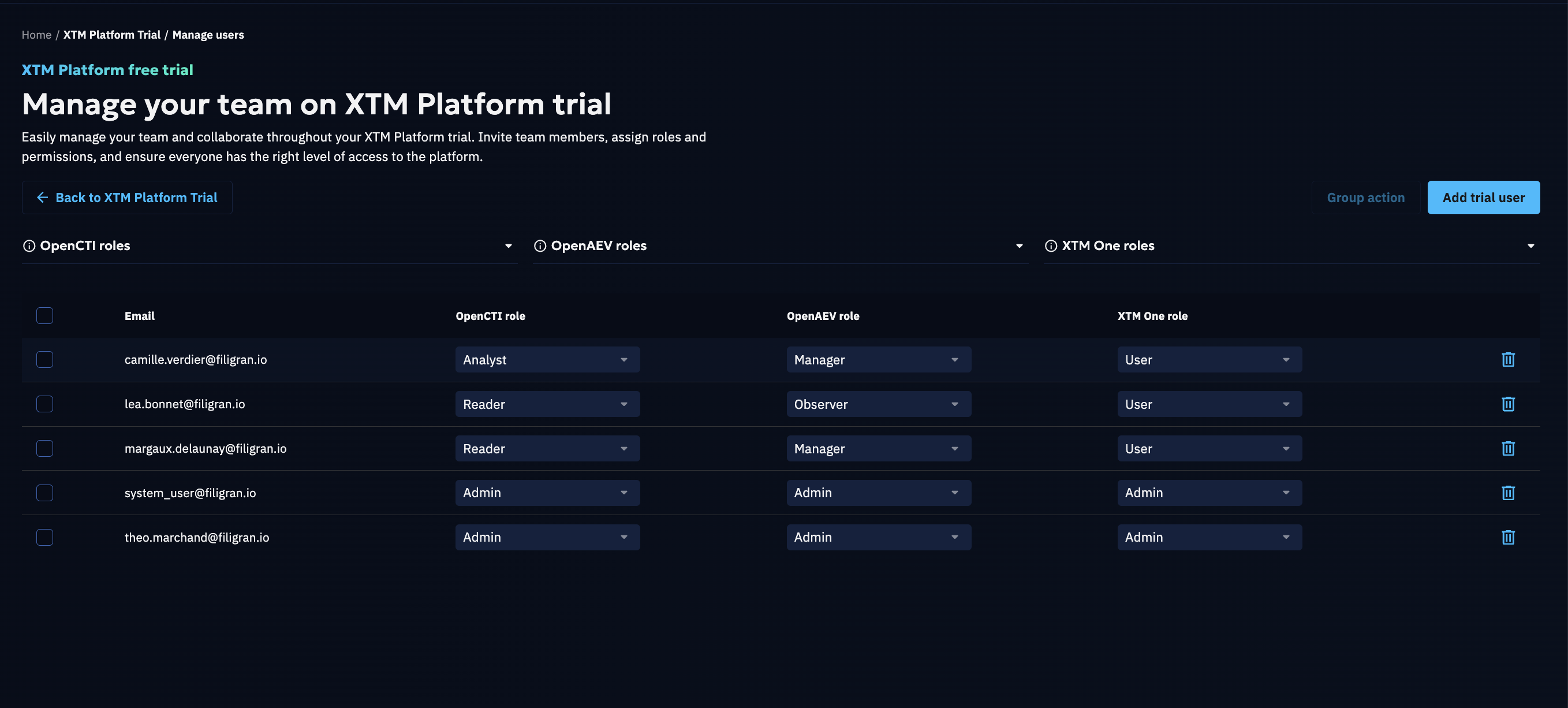
- Click Manage users.
- Click Add trial user, select a user, and assign a role on each product. An XTM One role is required; OpenCTI and OpenAEV can be set to No access.
You can add any user of your organization. If the person does not have an account yet, type their email address to invite them: it must belong to one of your organization's domains, and inviting requires the ADMINISTRATE ORGANIZATION or MANAGE ACCESS capability. Users who have not activated their account yet are shown as Invited or Expired.
Users who already have an account receive a welcome email and can log in with their XTM Hub credentials right away. Invited users first receive an email to create their Filigran account, and get access to the trial once their password is set. An invitation expires after 5 days: adding an expired user to the trial sends them a new one.
Use Group action to edit the roles of several users at once, or to remove users from the trial — removed users lose access to all three products.
User Group Mapping (Hub → Products)
To ensure consistent permissions across systems, the role you assign in the XTM Hub maps directly to a role in each product:
OpenCTI
- Admin: the administrator role with full access to product settings, configuration and management. Admins can manage users, roles and system-wide settings, in addition to having full visibility and control over the data.
- Analyst: a role with full access to all knowledge within the product. Analysts can create, edit and manage entities, relationships and investigations, but do not have access to product settings, administration or configuration options.
- Reader: a read-only role that allows access to view all data in the product without the ability to make any modifications.
OpenAEV
- Admin: the administrator role with full access to product settings, configuration and management. Admins can manage users, roles and system-wide settings, in addition to having full visibility and control over the elements.
- Manager: a role with full capabilities to manage and run any type of scenario. Managers can modify any element in the product but do not have access to product settings, administration or configuration options.
- Observer: a read-only role that allows access to view all elements in the product without the ability to make any modifications.
XTM One
- Admin: the administrator role with full access to platform settings, configuration and management. Admins can manage users, groups, integrations and system-wide settings, in addition to having full visibility and control over all elements, including company-managed resources shared across the organization. They can impersonate users for troubleshooting.
- User: the default role, with full capabilities to create, configure and run their own agents, flows and knowledge bases. Users can modify any element they own or that has been shared with them, but do not have access to platform settings, administration or configuration options.
Selecting No access for OpenCTI or OpenAEV prevents the user from opening that product. Every trial user must have an XTM One role: User is assigned by default.
Cancellation
You can cancel your trial from the XTM Platform Trial page: Cancel trial request while the request is in progress, or Cancel trial once it is active. A cancellation reason is required.
- If you cancel your request before the trial is active, your organization can request a new trial.
- If you cancel your trial once it is active, the cancellation is final: your organization cannot request another trial.
⚠️ Cancelling always cancels all three products: a single product cannot be cancelled on its own.
Contact Us
Selecting Reach out to Sales, from the XTM Hub or from the trial page, sends your inquiry directly to our Sales team.
Use this option for questions related to licensing, enterprise packages, pricing, or expansions.
Selecting Need support, next to it on the trial page, opens the Filigran community on Slack in a new tab.
Use this option for technical questions about the products themselves, to share feedback on your trial, or to get help from the Filigran team and the community.